---
title: Document management
description: How to manage your documents in vLex
---
[Skip to content](https://knowledge.vlex.com/en/features/manage-docs#main-content)
English
Show submenu for translations

Open main navigation
Close main navigation
- English
Show submenu for translations
- [Contact us](https://knowledge.vlex.com/en/support-1/contact-us)
[Contact us](https://knowledge.vlex.com/en/support-1/contact-us?hsLang=en)
How can we help you?
- There are no suggestions because the search field is empty.
1. [Help Center](https://knowledge.vlex.com/en?hsLang=en)
2. [Features](https://knowledge.vlex.com/en/features?hsLang=en)
3. [Document Management](https://knowledge.vlex.com/en/features?hsLang=en#document-management)
# Document management
## vLex provides you with the tools you need for easy digital document management.
To skip to the video, click [here](https://knowledge.vlex.com/en/features/manage-docs#vid).
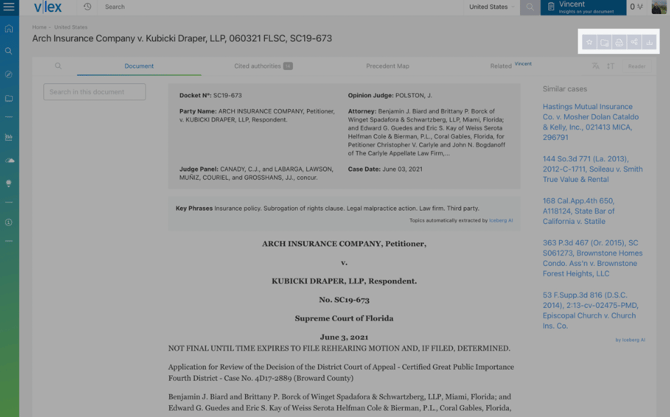
Our document management tools are always located in the top right corner of a document.
#### **Save as favourite**
The **Save as favourite** icon will save the document you are reading, allowing you to easily find it again in your folders.
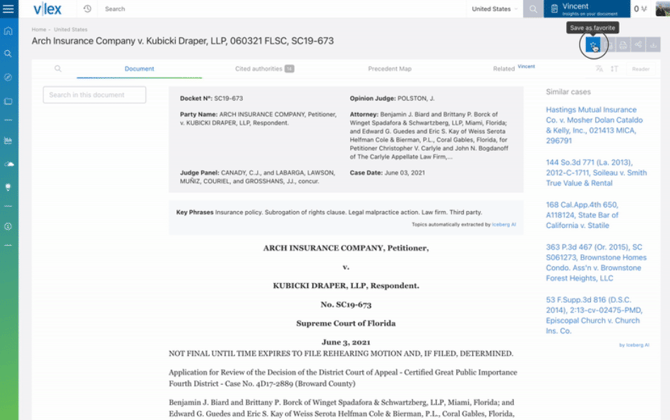
Find the documents you mark as favourites in the [Folders](https://knowledge.vlex.com/en/features/document-management/folders?hsLang=en) menu.
#### **Add to folder**
This option adds the document into your [Folders](https://knowledge.vlex.com/en/features/document-management/folders?hsLang=en) . Use the pop-up dialogue to add the document to a new folder, or put it into an existing one.
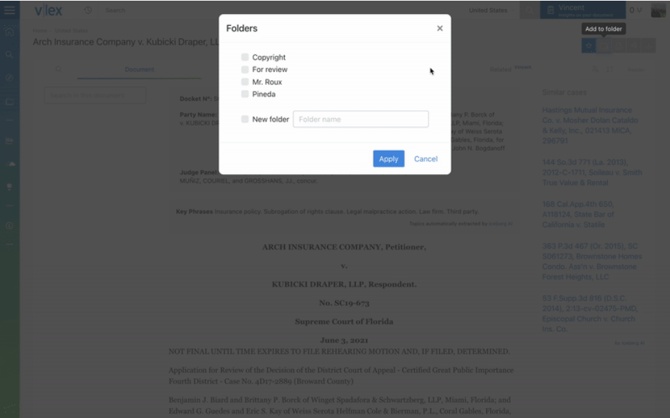
Another way of adding documents to your folders is to add [highlights or notes](https://knowledge.vlex.com/en/features/document-management/notes-and-highlights?hsLang=en) to them.
**Print**
Print any document using this icon. You can choose to include highlights or notes, and select the font size.
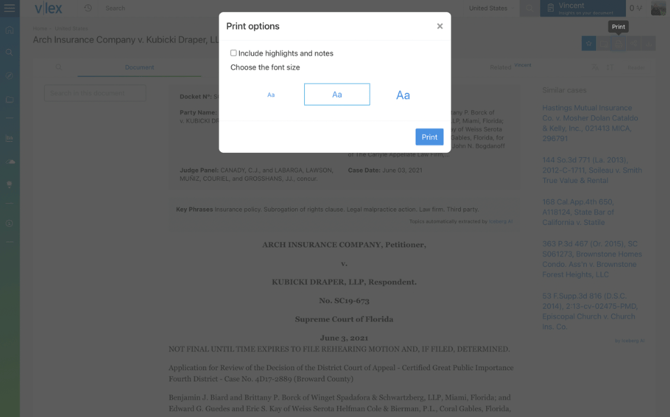
After selecting **Print** , the process that follows will depend on your browser and operating system.
#### **Share**
The **Share** tab allows you to share a document with colleagues or other vLex users in various ways. You can use social media, email, [reference managers](https://knowledge.vlex.com/en/support-1/integrations?hsLang=en) , or copy a link to the document, which you can paste wherever suits you.
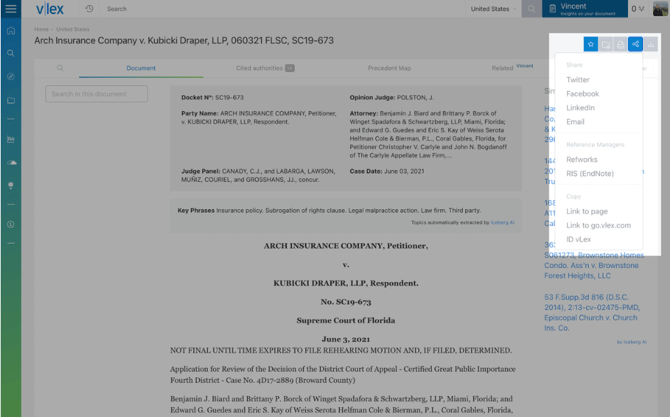
**Share**
- Selecting **Twitter** , **Facebook** , or **LinkedIn** will open a new tab, automatically creating a post on that site with a link to the document you are sharing.
- **Email** will open a pop-up within vLex from which you can send a link to the document. Your recipient will get an email from no-reply@vlex.com informing them that you have sent the document.
**Reference managers**
These [integrations](https://support.vlex.com/features/integrations) are great for researchers who want to keep their citations in dedicated software.
- RefWorks will open in a new tab where you can sign into their website.
- RIS (EndNote) will download the .ris file to your computer. You can use this file to upload the information from the **Import References** menu in EndNote Desktop or EndNote online.
**Copy**
- **Link to page** will open a box with a link you can use to share immediate access to the relevant page on vLex.
- **ID vLex** is a number you can enter into vLex, or share with others, that will allow you to find the document quickly and easily.
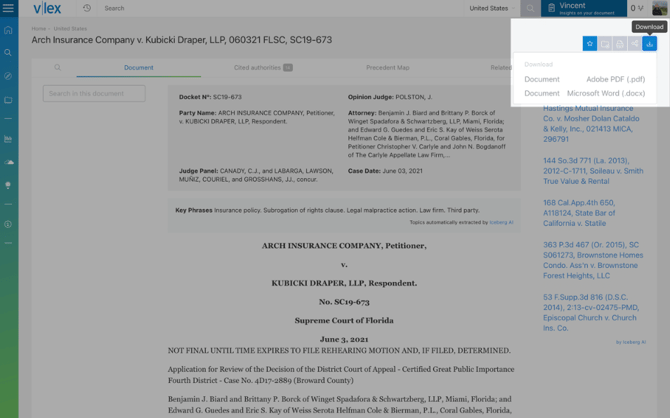
#### **Download**
The **Download** button opens a menu where you can choose between downloading a PDF or a Word version of the document.
Usually, PDFs will open in a new tab of your browser, and you will need to click download again on the PDF reader.
Microsoft Word (.docx) documents usually go straight into your downloads folder.
#### Video walkthrough
- [Getting Started](https://knowledge.vlex.com/en/getting-started?hsLang=en#main-content)
- [Sign In](https://knowledge.vlex.com/en/getting-started?hsLang=en#sign-in)
- [Set Up](https://knowledge.vlex.com/en/getting-started?hsLang=en#set-up)
- [Home Page](https://knowledge.vlex.com/en/getting-started?hsLang=en#home-page)
- [Searching](https://knowledge.vlex.com/en/getting-started?hsLang=en#searching)
- [Results Page](https://knowledge.vlex.com/en/getting-started?hsLang=en#results-page)
- [Document Viewer](https://knowledge.vlex.com/en/getting-started?hsLang=en#document-viewer)
- [Document Types](https://knowledge.vlex.com/en/document-types?hsLang=en#main-content)
- [Case Law](https://knowledge.vlex.com/en/document-types?hsLang=en#case-law)
- [Legislation](https://knowledge.vlex.com/en/document-types?hsLang=en#legislation)
- [Features](https://knowledge.vlex.com/en/features?hsLang=en#main-content)
- [Document Management](https://knowledge.vlex.com/en/features?hsLang=en#document-management)
- [Stay Updated](https://knowledge.vlex.com/en/features?hsLang=en#stay-updated)
- [Vincent AI](https://knowledge.vlex.com/en/vincent-ai?hsLang=en#main-content)
- [Research Workflows](https://knowledge.vlex.com/en/vincent-ai?hsLang=en#research-workflows)
- [Document Workflows](https://knowledge.vlex.com/en/vincent-ai?hsLang=en#document-workflows)
- [Collections](https://knowledge.vlex.com/en/vincent-ai?hsLang=en#collections)
- [Vincent AI Features](https://knowledge.vlex.com/en/vincent-ai?hsLang=en#vincent-ai-features)
- [Support](https://knowledge.vlex.com/en/support?hsLang=en#main-content)
- [Account Management](https://knowledge.vlex.com/en/support?hsLang=en#account-management)
- [Frequently Asked Questions](https://knowledge.vlex.com/en/support?hsLang=en#frequently-asked-questions)
- [Admin Users](https://knowledge.vlex.com/en/admin-users?hsLang=en)
- [Spain](https://knowledge.vlex.com/en/spain?hsLang=en)
- [Affiliated Solutions](https://knowledge.vlex.com/en/affiliated-solutions?hsLang=en)
[%20Logo%20Blue.png?width=479&height=297&name=Logo_vLex%20(part%20of%20Clio)%20Logo%20Blue.png)](http://vlex.com?hsLang=en)
123 Waverly Pl., Boston, MA 02135
Copyright © 2025, vLex